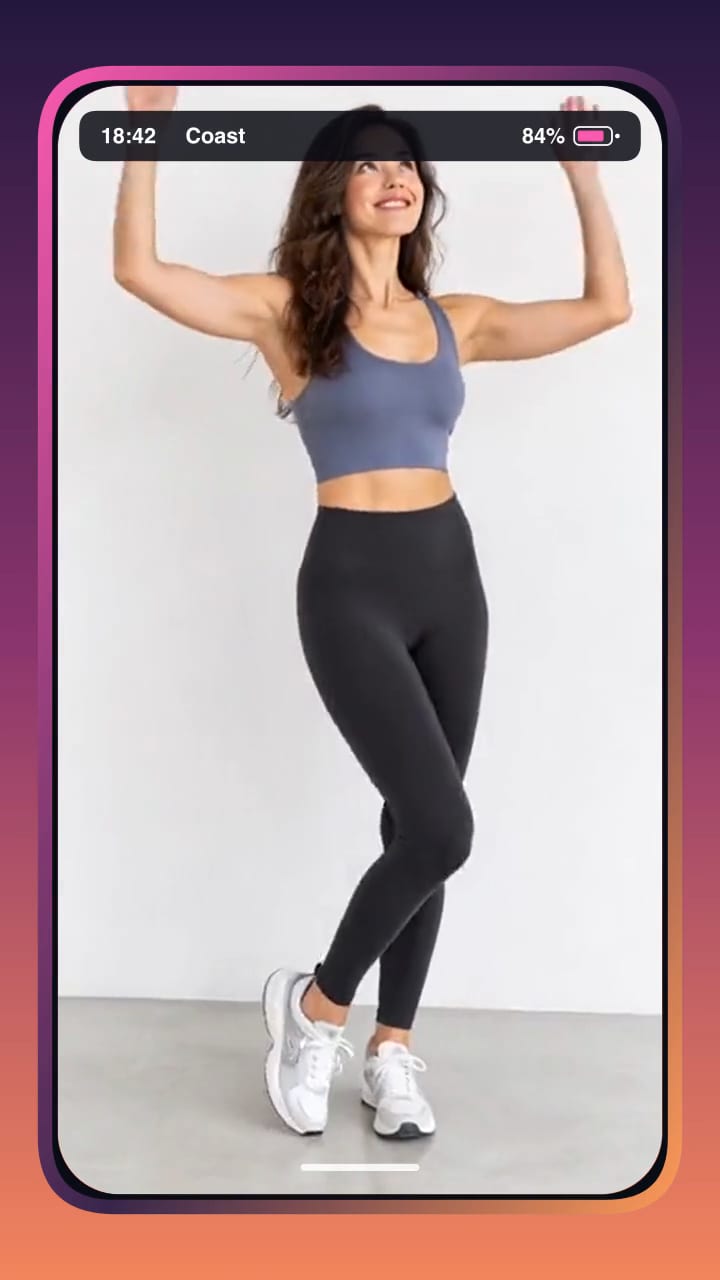
Choose a video, pick an original GTA VI-style phone and export the first 60 seconds with the clip's audio. The free editor runs entirely on your device. You can also download portrait or landscape green-screen PNGs and transparent overlays without choosing a video.
How to put a video in a GTA VI-style phone
- Choose an MP4, MOV or WebM that plays in your browser.
- Pick a phone style, orientation and background. Choose Fill screen for a crop or Show full clip to keep the whole frame.
- Pick 9:16 for vertical posts or 16:9 for a wide video. Play the preview to check the framing.
- Press Export video and keep the tab open. When it finishes, download your clip.
Free terms
| Condition | Phone video maker |
|---|---|
| Price and sign-up | Free, no sign-up required |
| Usage | No daily limit |
| Upload | Your files stay on your device |
| Watermark | None |
| Video length | First 60 seconds |
| Video output | 720 × 1280 or 1280 × 720, MP4 when supported, otherwise WebM. Keeps source audio. |
| Templates | Portrait and landscape green-screen or transparent PNGs |
How to use the green screen in CapCut, TikTok or OBS
- CapCut or Premiere: place the green-screen PNG above your clip, key out the green, and resize the clip underneath the phone. With the transparent PNG, skip the chroma key.
- TikTok: choose 9:16 here and post the finished clip from your camera roll. If your browser saves WebM, convert it to MP4 in your editor before posting.
- OBS: add the PNG as an Image source above your footage. Add a Chroma Key filter to the green PNG, or use the transparent PNG directly.
Video and export limits
- Export records in real time. Keep this tab visible until the download is ready.
- Your browser must play the source codec and support canvas recording. Firefox typically exports WebM.
- Transparent output is available as PNG. To remove the background around the phone in a video, select Green screen and key it in your editor.
Frequently asked questions
Is this official?
Unofficial fan tool. Not affiliated with or endorsed by Rockstar Games or Take-Two Interactive. GTA and Grand Theft Auto are their trademarks.
Can I download a phone template without a video?
Yes. Open Download PNG templates and choose a green-screen or transparent PNG in portrait or landscape.
Will the clip keep its sound?
The video export includes the source clip's audio when your browser can decode it.
Is my video uploaded?
No. The phone composition and export run on your device.